

Choose how your website uses Berchtold:
- Hosted by Berchtold: build and host your full website in Berchtold, with home search built in. Read Build your website in Berchtold.
- Self-Hosted Headless: keep your website on its current platform. Add Berchtold property search, listings and lead capture with an embed script or the WordPress plugin. This article covers that setup.
- Tracking-Only: connect an existing website for visit tracking and reports. It has no Berchtold home search until you set it up.
You can change this later on the same website, without adding a second website. Read Change how your website works.
Your website platform manages its pages, content, navigation and hosting. Berchtold supplies the property search, listing details, market pages and visitor accounts. Visitors stay on your website. They can save homes, save searches or send a question, and each of these shows in your CRM.
Add the script through your website's code settings, or use the WordPress plugin. Then add home search to a page, and add any widgets you want.
Home search and listing pages also need the Real estate part. See Choose your business type.
Turn on home search
- Open Sites and select your Self-Hosted Headless website.
- Open the IDX setup tab. Make sure the website has its domain. Home search shows only on the website's domains.
- Under Home search, enter your Search page address. Create this page on your website, for example
https://www.yourwebsite.com/homes. - Turn on Show home search on this website. Then select Save home search.
The panel shows your Home search address, for example yourwebsite-homes.berchtoldhosted.com, and the codes for your website. It also says whether your MLS data license covers the website. Listings show when the license covers the website and the MLS data is ready.
Choose colors and fonts
Home search uses the same design choices as a website built in Berchtold.
- Under Home search, find Design and select Edit design.
- On Templates, choose a template. The template sets the cards, the buttons and the corners. Your colors and fonts stay when you change it.
- On Styles, choose your colors. Type a color code, use the color picker or choose a saved brand color. Select Use brand styles to start from your brand's colors.
- Choose the fonts. Use my website's fonts is first in each list. With it, home search uses the fonts of your website's pages. Choose another font to use it for home search. These fonts load with home search, so your website does not need them.
- Choose the corners: square, soft or rounded.
- Look at the preview. Choose Home cards, Listing page, Forms or Search, and Desktop or Phone. The preview shows your changes before you save.
- Select Save design. Home search changes on every page of your website.
Text must stay easy to read. If a color makes text hard to read, Berchtold tells you which color to change.
Without a saved design, home search uses the design of your website in Berchtold. With no such website, it uses your brand's colors. Either way, it uses your website's fonts.
Add the codes to your website
Under Install IDX, select Embed script.
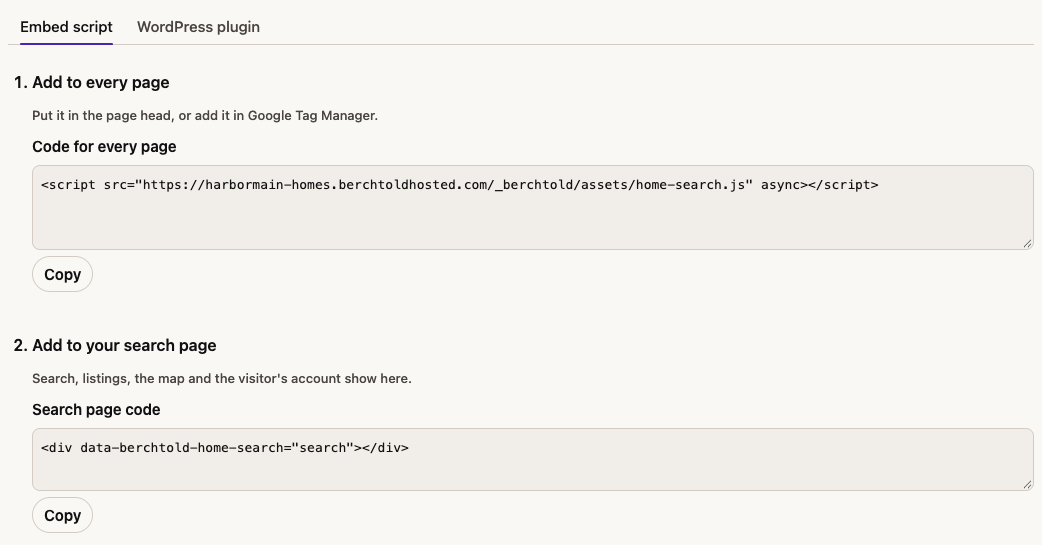
-
Add to every page. Copy the first code into the page head of every page, above your other scripts. You can also add it in Google Tag Manager as a Custom HTML tag that runs on all pages.
The code has two scripts. The first is short. If a visitor selects a home search button before the page is ready, it shows that the button is working. The button then works as soon as home search is ready. The second script loads home search.
-
Add to your search page. Copy the search page code onto the page whose address you saved. Search, listings, the map and the visitor's account show there.
-
Add widgets to any page. Copy the code of each widget you want:
- Quick search: a search box that opens your search page.
- Featured listings: a grid of homes, with a link to all matching homes.
- Gallery slider: a row of homes that scrolls sideways.
- Markets: the markets on this website.
- Market: one market's homes for sale, open houses or market report. Visitors can use the market's tabs in the widget. Add a market to the website first in Properties > Markets. The panel shows a code for each market.
- Home value request: a form where owners ask what their home is worth. Each request is a seller lead in your CRM, with the home as a property. See Your home value page.
- Mortgage calculator: visitors estimate a monthly payment. Add
data-price="250000"to start with a home's price. - Sign in: a button that opens the visitor's account.
For Featured listings and Gallery slider, choose:
- Listed by: this website's agents, your office or anyone.
- How many: 3, 6, 9 or 12 homes.
- Property type: for example condos, commercial or homes for rent.
- Status: for sale, pending, for sale and pending, or sold.
- Your homes that are not in the MLS: add them or leave them out.
The code changes when you change a choice. Copy it again after each change.
When a visitor selects a home in a widget, it opens on your search page. The page's address changes to match, so a visitor can share or bookmark it.
WordPress
On WordPress, you need the Berchtold Abilities plugin, version 2.4.1 or later. That version adds the short first script, so a button selected early still works.
Under Install IDX, select WordPress plugin to see the plugin steps and your search page shortcode.
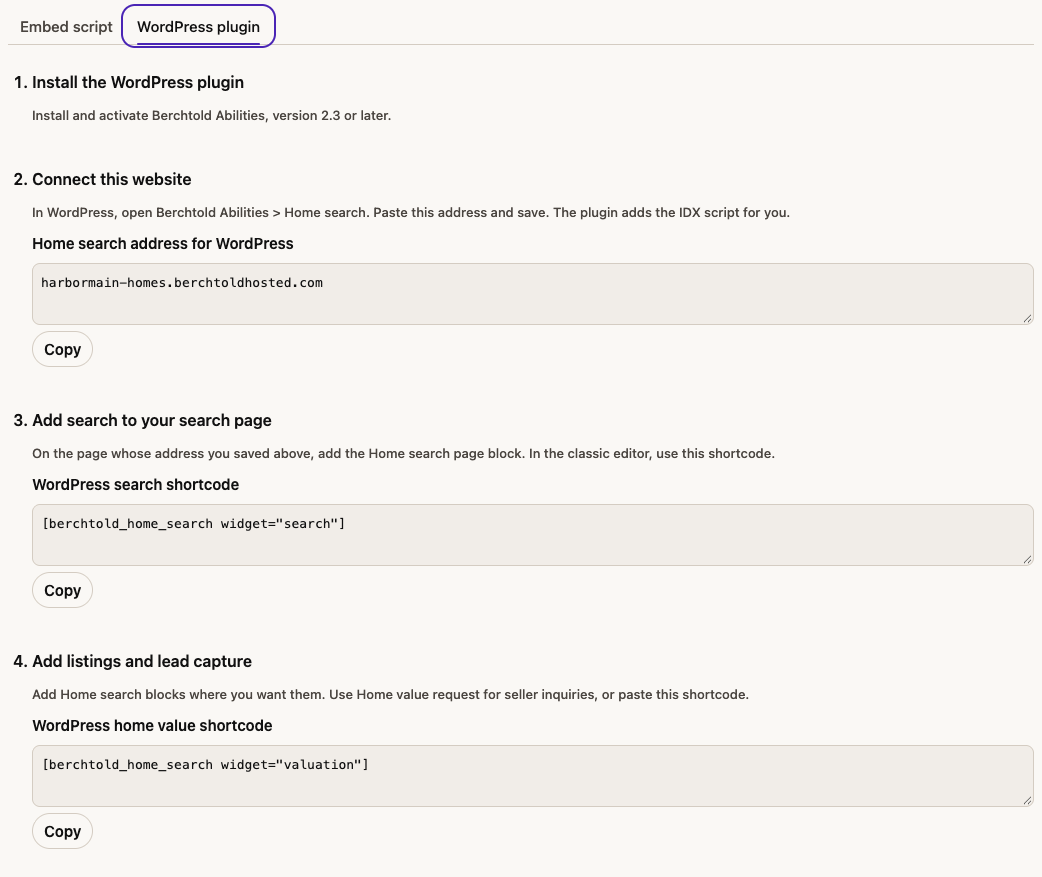
- In WordPress, open Berchtold Abilities > Home search.
- Paste the Home search address from Berchtold. You can also paste the whole Code for every page script.
- Keep Add the home search code to every page on, then select Save home search. The plugin adds the script for you.
- Edit the search page whose address you saved in Berchtold. Add the Home search page block from the Home search group, then publish the page.
If you use the classic editor, or a page builder that takes shortcodes, put this on your search page:
[berchtold_home_search widget="search"]
Add other Home search blocks where you want widgets. You can also use shortcodes:
[berchtold_home_search widget="featured-listings" listed_by="office" limit="6" type="condo" status="sold"]
[berchtold_home_search widget="market" market="north-county" view="open-houses"]
Next.js
Under Install IDX, select Next.js.
- Add the scripts to your root layout. In
app/layout, put the short inline script in<head>. Load the home search script withnext/scriptandstrategy="afterInteractive". Copy the code from the panel. Do not load the short script withnext/script: it must run before Next.js loads. - Add the search placement to your search page. Render it on the server, on the page whose address you saved. Check website can then find it.
- Allow the IDX address. If your app sets a Content-Security-Policy, add your Home search address with
https://toscript-srcandframe-src. If your policy does not allow inline scripts, also add the hash from the panel toscript-src.
Search engine friendly addresses
Under Home search, choose your Addresses:
- Simple addresses: every page opens on your search page, for example
/homes?bh=/homes/123-main-st-anytown-mo-63000/mis-12345678. Search engines do not list your listings. This is the default. - Search engine friendly addresses: each listing and market has its own address under your search page, for example
/homes/listing/123-main-st-anytown-mo-63000-mis-12345678. Search engines can list each listing page.
With search engine friendly addresses, your website's server shows these pages. Your developer sets this up once. The panel shows the steps:
- Send every address under your search page, such as
/homes/listing/…and/homes/markets/…, to your search page template. - On your server, ask Berchtold for the page's data. Use the Page data link and add the part of the address after your search page.
- Answer with the page's status. For 301, redirect to the new address. For 404 or 410, show your page-not-found page.
- Show the page from its data: the title, description, canonical link and structured data. Show the MLS credit with each listing.
- Place the widgets the data lists. On a listing page, add Listing actions: Save, Request a tour and Ask about this home. Requests go to your CRM.
- Add the sitemap line to your robots.txt, so search engines find each listing page.
Market pages list their homes as links, so search engines can follow them. The map and filters stay in the market widget.
Links in home search, emails and market reports go to your website's own addresses. Old ?bh= links keep working. Your website sends visitors to the new addresses.
Make the change on your website first. Then choose Search engine friendly addresses and save. Select Check website to test a listing page.
Check your setup
On the IDX setup tab, the IDX setup checklist is above the settings and the install steps. Select Check website. Berchtold opens your website's pages and marks each step Done, Missing or Waiting:
- IDX is turned on: Show home search on this website is on.
- Search page answers: your search page address is saved and the page loads.
- Home search script is on the page: the search page loads the script for this website. If it is Missing, the item shows the code to copy. Berchtold finds a script that your website's own code adds. It can't see a script that Google Tag Manager adds.
- Search placement is on the search page: the search page has the search code. Some websites add the search in the visitor's browser, for example a website built with Next.js. Berchtold can't see it in the page, so this item shows Waiting. Open your search page and make sure the search shows.
- Content-Security-Policy allows IDX: if your website sets a policy, the item says what to add and where. For example, add
https://yourwebsite-homes.berchtoldhosted.comtoscript-src. - Listing pages answer on your website: only with search engine friendly addresses. Berchtold opens one listing page on your website. It must load, show the listing's address and have a canonical link to itself.
- Privacy policy and terms pages: both addresses are saved and the pages load.
- Website platform: WordPress, Next.js or another platform. The install steps open on the tab for your platform.
- MLS coverage: your MLS data license covers this website.
- Markets on this website: optional. Add a market in Properties > Markets to show its pages and reports.
Waiting means Berchtold can't check the step yet, for example until the search page loads. Fix the Missing items, then select Check website again. The checklist shows the last result and when it ran. If you change the search page, check again.
Berchtold opens only https pages on your website's own domains. It does not follow a redirect to another domain, and it sends no cookies.
Change how your website works
Open the website in Sites. On Overview, find How this website works and choose Hosted by Berchtold, Self-Hosted Headless or Tracking-Only. Select Review change. Berchtold shows what will happen and where email links go now and after the change. Nothing changes until you select Change to with the new choice.
The website keeps its domains, its Google Analytics and Search Console choices, and visit tracking.
- From Hosted by Berchtold to Self-Hosted Headless or Tracking-Only: your hosted website goes offline and becomes a draft again. Its pages and posts stay in Berchtold. Berchtold stops showing it on your domains, so point their DNS to your own website host. Enter your website's address if Berchtold asks for it.
- To Self-Hosted Headless: Berchtold sets aside a home search address for the website. Then set up home search on the IDX setup tab.
- To Tracking-Only: home search turns off and its address is freed. Market reports and listing alerts for the website stop.
- To Hosted by Berchtold: a website you hosted before comes back as a draft with its pages. If not, a new website starts as a draft. Berchtold does not publish it. Home search on your own website keeps working until you turn it off.
Old links from your previous IDX provider
Your website may have old links from another IDX provider, such as iHomefinder. Add redirects on your website so these links open your search page:
- A listing: redirect
/listing?id=25012345_157to your search page with?bh=/homes/listing/mis-25012345. Use your MLS's letters in Berchtold's listing addresses, for examplemisfor MARIS. With search engine friendly addresses, redirect it to/homes/listing/mis-25012345instead. Berchtold then sends visitors on to the listing's full address. - A market: first, in Properties > Markets, open the market. On its Pages tab, add the market's old ID under Old market IDs. Then redirect the old market link to your search page with
?bh=/markets/previous/and the ID. Add/open-housesor/reportfor those pages.
Accounts, saved homes and alerts
Visitors can create an account, save homes and searches, and get listing alerts and market reports by email. Their account is a contact in your CRM. Links in their emails open your search page.
A new account also joins your website's Website sign-ups list. The list keeps the words they agreed to under Create account. For a welcome series, open Automations. Use the New property signup welcome series template with that list. Someone who unsubscribed stays off the list.
Visitors can ask about a home or request a tour on its listing page. Owners can ask what their home is worth through the Home value request widget. Each request adds a lead to your CRM, or updates the lead, and the contact's owner gets a notice.
Under Home search, you can also set:
- Privacy policy page and Terms of use page: pages on your website. The notice under Create account links to them.
- Ask visitors to sign up: choose 3, 5 or 10 homes. When a visitor looks at that many homes in one visit, a window asks them to create an account. They can close it. The default is Never.
Connect visits to the contact's Journey
Add the Berchtold tracking script to show website visits on a contact's Journey. This script is separate from home search. When a visitor signs up or sends a request, their visits join their contact.
In Sites, open Installation to copy the tracking script. Add it to every page and check that your website's domain is listed under Visit tracking. Read Connect your website for the full steps.
On WordPress:
- Open Berchtold Abilities > Tracking and forms.
- Paste the tracking script into Berchtold workspace.
- Keep Add the tracking script to every page on.
- Select Save tracking and forms.
Turn home search off
Turn off Show home search on this website and select Save home search. The search, listings and widgets stop showing at once. The codes stay the same, so you can turn it on again later.
Search engines
With simple addresses, search engines do not list your listing pages. With search engine friendly addresses, search engines can list each listing page your website shows. This lasts while your MLS data license covers it. Search results pages stay out of search engines. On a website hosted by Berchtold, search engines can list its listing pages too.