

Open a contact
Open Contacts and select a person. The header shows who they are and how to reach them. Contact Info holds their details. All Deals shows their deals.
A contact is a person. Words like lead or client describe your work with them. The person stays the same contact.
To find any contact, account or deal, press ⌘K on a Mac or Ctrl+K on other computers. You can also select the search button in the top bar. Workspace search shows only the contacts, accounts and deals you have permission to open.
Email and phone
Each contact must have an email address. Berchtold uses the email to find duplicates. When another contact has the same email, the app names that contact and links to it. You can add more addresses under Other emails.
A contact has one phone number. Enter a US number with 10 digits. Start other numbers with + and the country code.
Role and status
Role says who a person is to your business. For example: Co-op agent, Loan officer or Our agent. A contact can have more than one role. The list is your deal roles, so a role you rename in Settings → CRM → Roles is renamed here too.
A contact with no role is a client. Add someone to a deal as a co-op agent or lender. Their contact gets that role.
A client's status comes from their deals. You don't set it:
- Lead: no deal past a lead stage yet, and no closing.
- Active client: a deal that is open and past a lead stage.
- Past client: a closed deal and nothing open now.
A contact with only non-client roles has no status. Lead reports and lead segments leave them out. A co-op agent who buys a home is a client on that deal, so they count as a client again.
Edit basic information
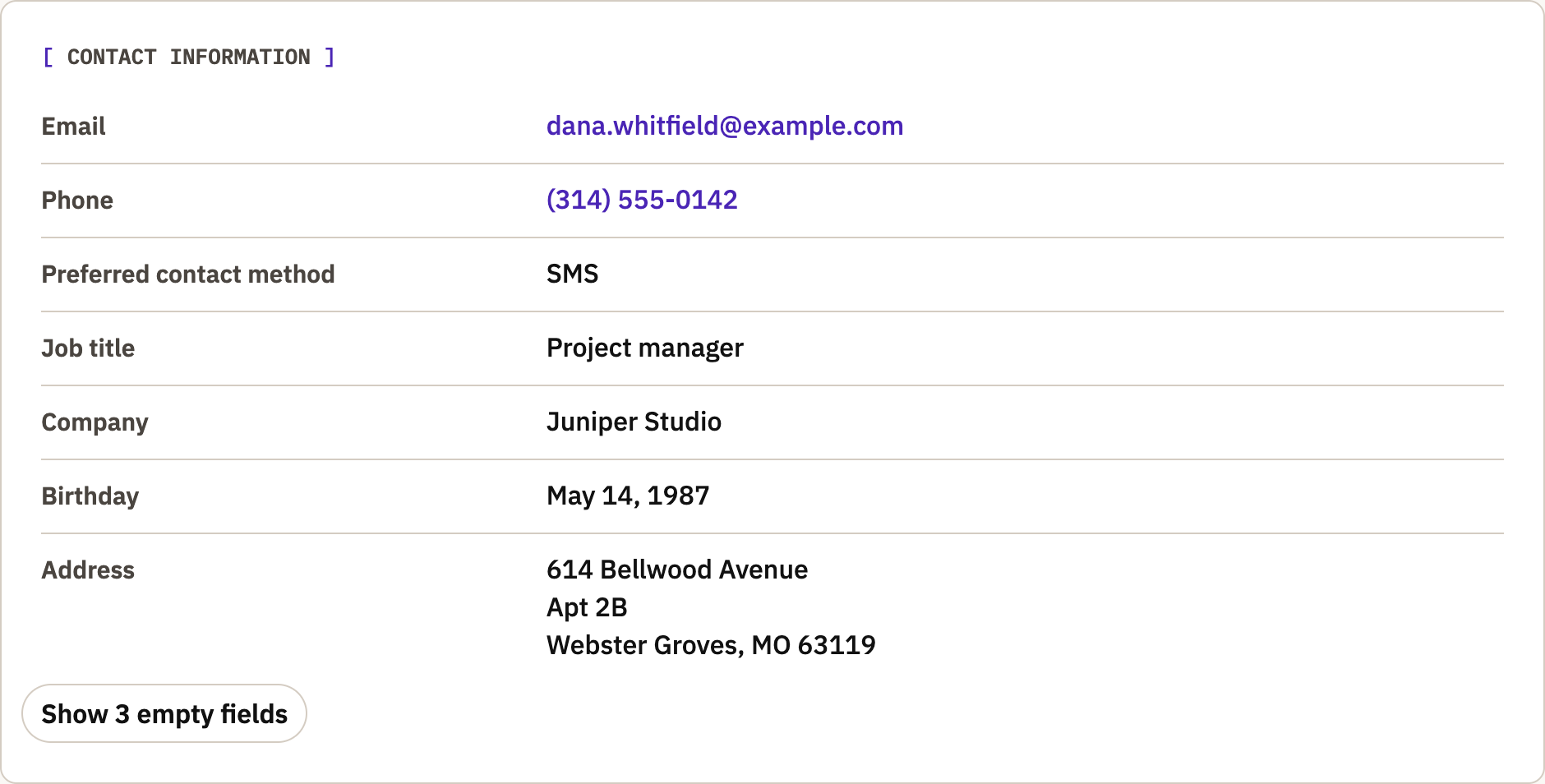
In Contact Information, select a value or its edit button. Use the add button for an empty field. Edit names in the header at the top. The header also shows the owner.
- A short text field saves when you press Enter or leave the field.
- Escape cancels an edit. A field with a list of options saves when you choose one.
- A field with several lines saves when you press Ctrl+Enter, or Command+Enter on a Mac.
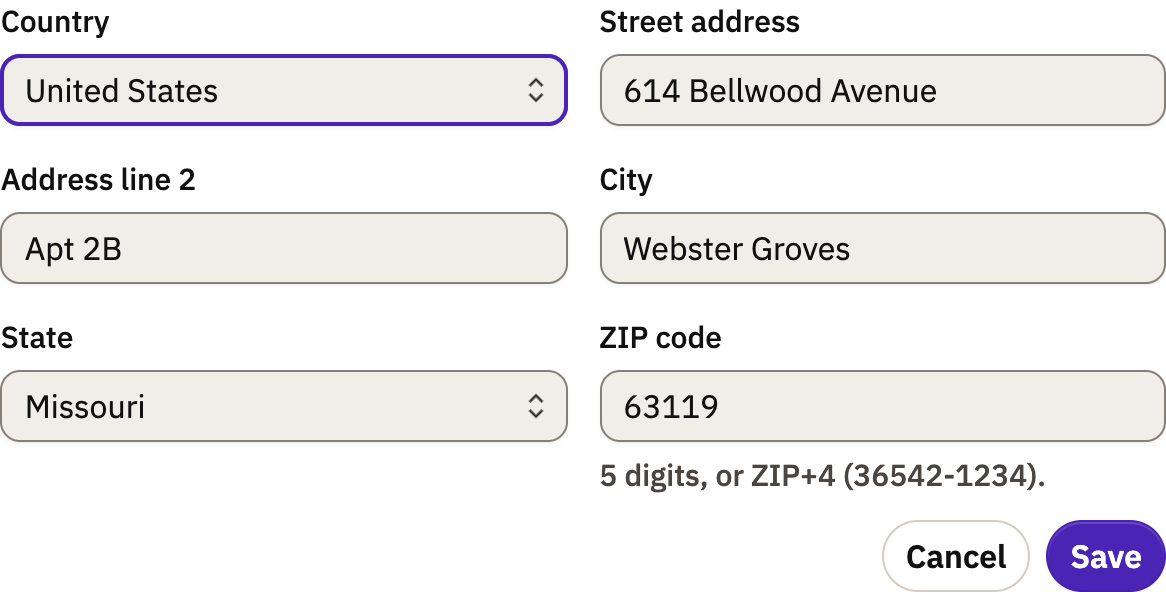
- A field with several parts, such as an address, has Save and Cancel buttons.
If a change does not save, fix the highlighted field and try again. Berchtold keeps what you typed. If you see no edit buttons, you may not have permission to edit this contact, or the contact is archived.
Find fields that are not showing
Select Show 3 empty fields in Contact Information to see the fields that have no value. The number is how many are empty. Expand a group of custom fields to see its values. A closed or empty group does not mean the details were deleted.
For an address, enter the street, city, state or region, postal code and country in their own fields. Select Save when you finish the whole address.
Social profiles
The header shows an icon for each social profile of the contact, such as LinkedIn. The Social profiles section lists them. Use Find profiles or Add a profile there. See Link contacts to their social profiles.
Log a call, text, email or meeting
In the activity panel, select Log a conversation. Choose the Type: Call, Text, Email or Meeting. Then choose the Direction, the Outcome and When. For a call or a meeting, enter the Minutes. You can link it to one of the contact's deals and add Notes. Select Log it.
To record a voice note, select Record a note in the activity panel. Berchtold saves what you said as a note. It does not keep the audio. Berchtold can suggest updates to the contact from a note or a logged conversation. See Keep contacts and deals up to date.
See where a contact came from
Open System & preferences on the contact. First touch shows how the contact first came to you. It shows the campaign, the UTM source and medium, the channel and the date. Latest touch shows the most recent one when it is different. You cannot change these.
Original source is a field that you can edit. Berchtold uses it to decide who gets a new lead.
Keep context connected
- Use Relationships to link people and accounts. See Link people and accounts.
- Use Tasks to assign work. A task that you add on a deal can also show on the deal's clients and its property. Select them under Also show on.
- Use Deals for opportunities.
- Use accounts for companies. See Accounts and account intelligence.
On a computer, the activity panel is beside the contact, so you can see recent changes.
If a contact may be a duplicate
A notice at the top of the contact says when the contact may be the same person as another contact. It also says why, for example the same phone number. Select Review to compare the two contacts and merge them. If they are different people, select Not the same person.
To merge with a contact that is not listed, open More actions and select Merge with another contact…. Then find the other contact. See Find and merge duplicate contacts.
Who can see a contact
Each agent has a private book. You see the contacts that you own, the contacts on your deals and the contacts that are shared with you. A person whose role has See all records sees every contact. See Users and roles.
Email consent is on the list
Berchtold keeps consent to marketing email on each email list, not on the contact. Adding a contact does not subscribe them. Tags and lead labels do not give consent. Open the contact's Subscription history to see each sign-up. See Lists and subscriptions.