

Tags describe context
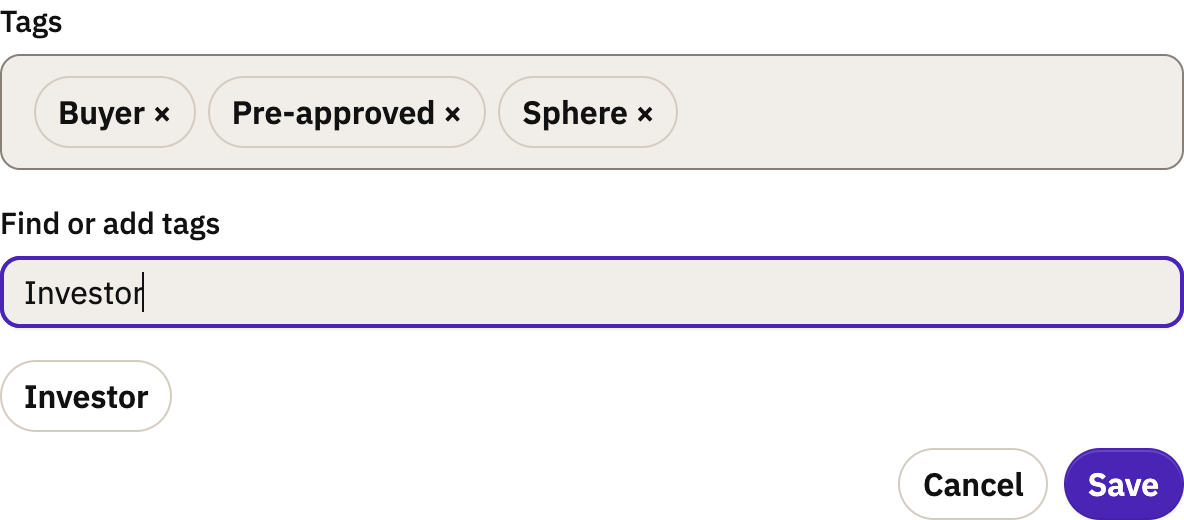
Add tags to a contact or a deal to label it. For example, tag a source, an interest or a type of move. Contacts and deals use the same tags. In the tag editor, search for a tag, choose it and select Save. Remove a tag when it no longer applies.
To manage all tags, open Contacts → Tags. Select Add tags and enter the names, separated by commas or new lines. Tags that exist are skipped. Each tag shows how many contacts and deals have it. Select a number to open those contacts and deals.
Select tags to archive, restore or delete them. Deleting a tag removes it from every contact and deal. A deleted tag can't be recovered. Archive a tag if you want to use it again later.
To add or remove a tag on many contacts, use Bulk actions on the Contacts list. See Import, export and clean up contacts. For deals, use Bulk actions on the Deals list. See Find deals by tag.
Segments pick out contacts
A segment is a saved group of contacts that match your conditions. Contacts join and leave the segment when their details change. You do not keep the list by hand.
- Open Contacts → Segments and select New segment. Give it a Name and add conditions. Choose whether a contact must match all conditions or any condition.
- You can add a condition about deals, for example contacts who have a deal that matches your deal rules.
- On the Contacts list, you can also select Build conditions, then Apply conditions, then Save as segment.
Test the conditions with sample contacts before you use the segment. To make a segment, your role needs Create and Configure in the CRM.
Find contacts with a date coming up
On the Contacts list, select Filters. In Date coming up, choose Birthday, Home anniversary or a custom date field. Then choose a period in Within, from the next 7 days to the next 90 days.
The list shows each contact whose date comes in that period, the soonest first. The Next date column shows the date and the number of days until it. Birthdays and home anniversaries come every year. A birthday saved without a year also counts. A custom date field matches its date one time.
"Today" is the date in your workspace's time zone (Transaction settings). Select all, Bulk actions and Export use the same contacts as the list.
In Claude, ChatGPT or another AI assistant, you can ask: "Which contacts have a birthday in the next month?"
Start with suggested segments
Open Contacts → Segments to see Suggested segments. They come from the contacts and deals you have permission to open. They use client status (Lead, Active client, Past client), roles, and recent website, email or form activity. They also find contacts and deals that need work. Berchtold counts who matches. AI chooses useful groups and says why they may help.
Suggestions can include these groups:
- Contact details: contacts with no street address, no phone number or no owner. Contacts on a deal with no role on it. Contacts on an open or won deal who are subscribed to no email list.
- Relationships: the co-op agents, title or escrow officers and loan officers on your deals. Past clients that no person has updated in 90 days or more.
- Deals and pipeline: clients on open deals past their expected close date. Clients on deals under contract that close in the next 14 days. Clients on open deals with no update in 30 days, no expected close date or no price.
- After closing: clients whose deal closed won in the last 365 days. Use this group for home anniversaries and review requests.
Clients are the buyers, sellers, tenants and landlords on a deal. All deal conditions in a group must match the same deal. A contact or deal that no person has ever updated counts as not updated. Day counts change at midnight UTC.
The segment editor has three day counts for deals. They are Days until expected close, Days since closed and Days since a person updated it. Days until expected close is below 0 when the date has passed. A deal Value is empty when the deal has no price.
Enter a Focus (optional) to guide the suggestions, then select Refresh suggestions. For example, ask for post-closing care. If your contacts and deals do not fit that goal, no group is suggested.
Select View contacts to check who matches. Select Review segment to open its rules in the editor. You can change the name and conditions before you save. Saving uses the same permissions as creating any segment.
Saved segments update as contacts and deals change. A rule about recent activity looks back a set number of days, so older activity stops matching. A suggestion is left out when you already saved a segment with the same rules. When the counts stay the same, the suggestions stay the same for up to six hours. Each refresh counts again, and checks who you may see. With a private book, the counts include only contacts you may open.
Suggestions do not send messages, add tags or change email consent. Email campaigns still use each list's consent rules. A deal does not give consent to marketing email. Ask a person before you add them to a list. The AI gets only the rules and counts. It never gets names, email addresses or private notes.
Email lists keep consent
Each email list keeps a person's consent to marketing email. The list keeps how and when each person signed up. A tag or a segment does not give consent, and it does not undo an unsubscribe.
A campaign goes to the people on its lists. You can use segments to keep or leave out people from those lists. Review the audience before you send. See Lists and subscriptions.